Utilizing Timecode on the Nikon ZR Cinema Camera
The Nikon ZR Cinema Camera brings a range of powerful cinema capabilities to a wide variety of filmmakers. When used alongside other ZRs or in combination with RED Digital Cinema Cameras, the ZR can not only be seamlessly color matched, but it can also be programmed to run the same timecode for easier post-production, multi-camera syncing.
To get the most out of the timecode features on the ZR, first ensure that you are up to date on your ZR firmware (firmware 1.10 or newer) and then follow these steps:
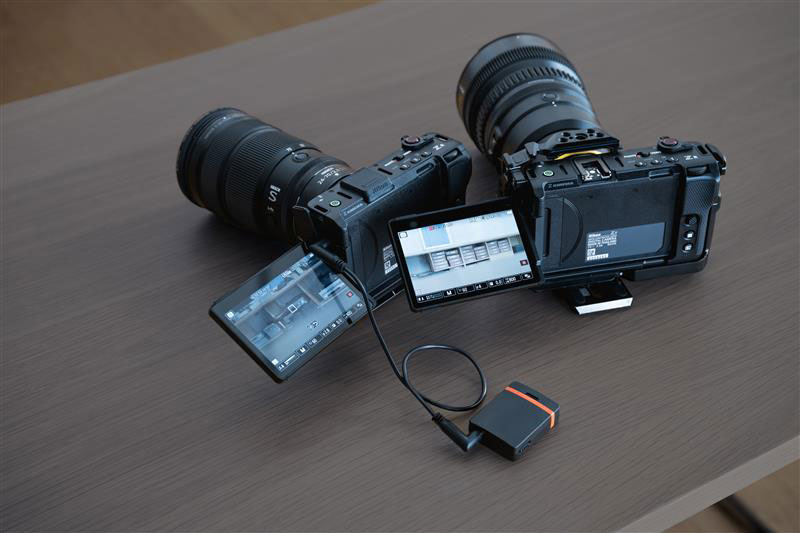
Nikon ZR cinema cameras shown with a Tentacle Sync unit attached to be able to sync timecode across multiple cameras.
Pairing the ZR with Audio Hardware
Third party audio manufacturers offer solutions specifically designed to sync timecode across different cinema cameras. One such solution is known as a timecode generator.
There are certain timecode generators that work wirelessly and others that are wired. The ZR is compatible with both types, however, wired hardware will be more time accurate.
Once you have done your research on your desired timecode generator, you will need to explore its functionality. Compatibility and instructions will naturally vary by manufacturer.
To properly sync timecode on the ZR with external hardware, first refer to manufacturer instructions. Once you are ready, then you can activate timecode functionality on the ZR.
Activating Timecode on the ZR:
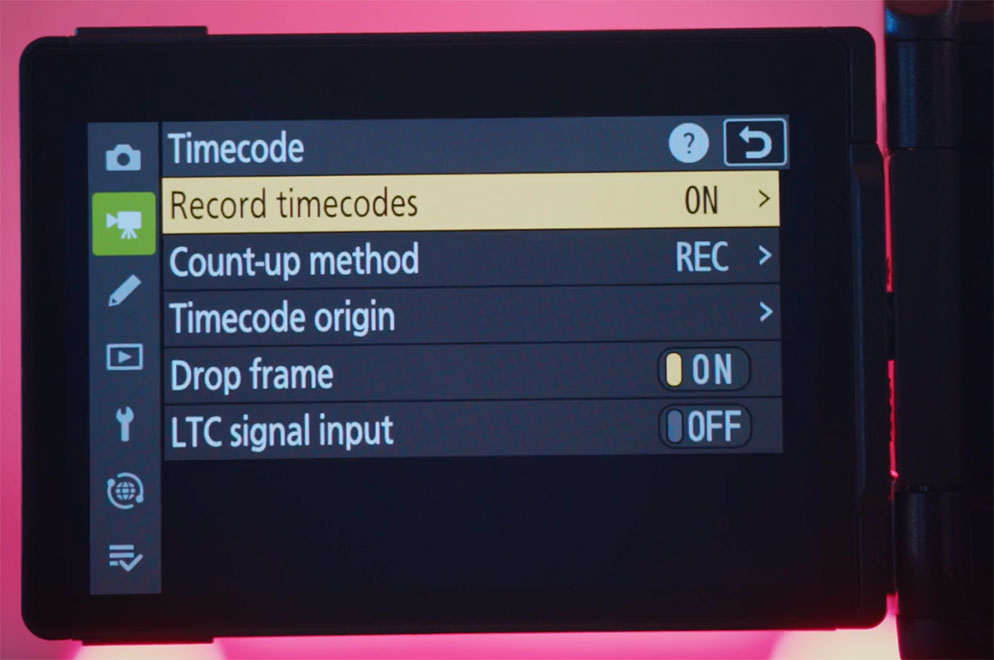
Select: Video Recording Menu (Video Camera Icon) > Timecode > Record Timecode > On
Jam Sync Timecode and LTC:
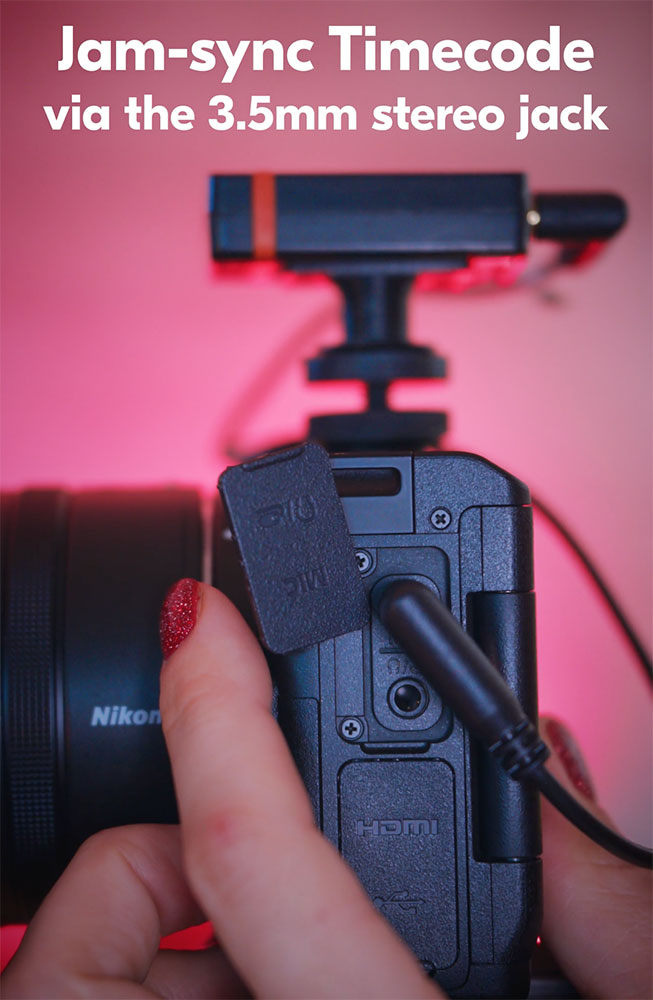
With the introduction of ZR firmware 1.10, filmmakers can now jam sync timecode using LTC (linear timecode) and a wired timecode generator that plugs into the 3.5mm mic jack.
LTC can be activated within the Timecode tab: Timecode > LTC signal input > On
You can verify timecode in the live view display. Ensure it matches your source timecode.
Syncing Timecode Across Cameras:
If utilizing other ZRs in your multi-camera production, you will need to repeat the above steps for each ZR you would like to sync. For other cameras, refer to manufacturer instructions. To maintain timecode on the ZRs, ensure that the cameras remain on.
Additional Audio Features:
As a professional filmmaking solution, the Nikon ZR offers a wide array of built-in audio tools beyond just timecode sync capabilities.