Understanding Audio Direction Modes on the Nikon ZR Cinema Camera
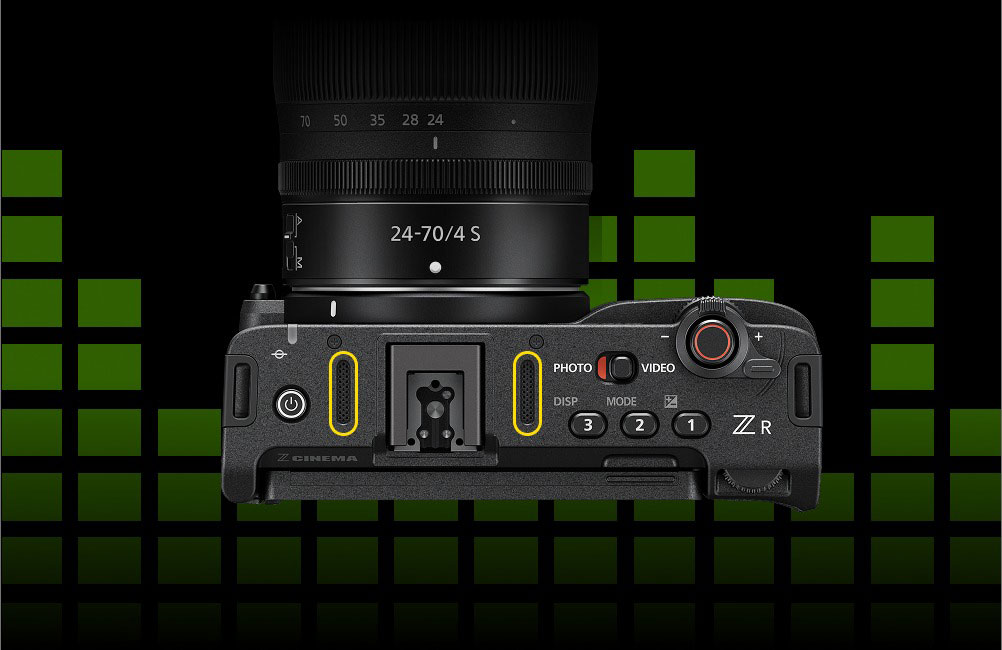
The Nikon ZR Cinema Camera packs powerful filmmaking tools into a compact, lightweight body. From its renowned RED color science to its innovative audio technology, the ZR gives filmmakers greater control. One feature that truly sets it apart is its ability to dial in the direction of audio using built-in microphones.
Powered by Nokia’s OZO Audio technology, the ZR’s audio direction modes give you precise control over how the camera’s built-in microphones pick up sound. Whether you want to focus on an interview subject or record behind‑the‑camera commentary, these modes help tailor the microphone’s behavior to your needs.
Five Audio Direction Modes:
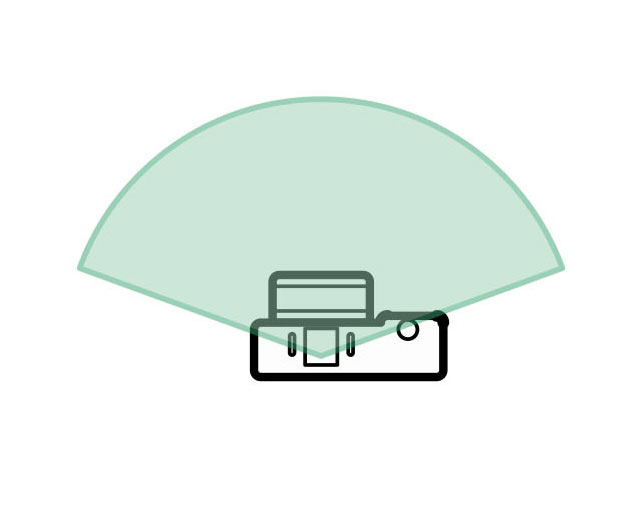
Front: Captures a broad area in front of the camera. Ideal for on-screen sounds and conversations between more than one person.
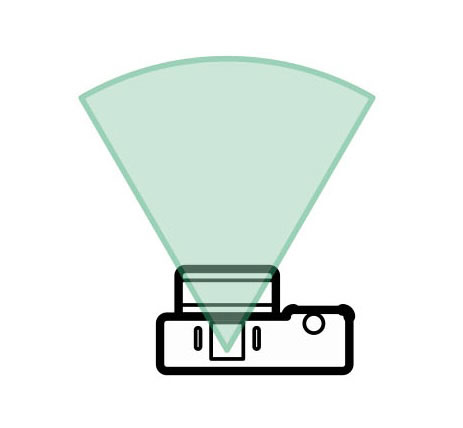
Front – Super Directional: Captures audio directly in front of the camera. Perfect for single-person, direct-to-camera interviews.
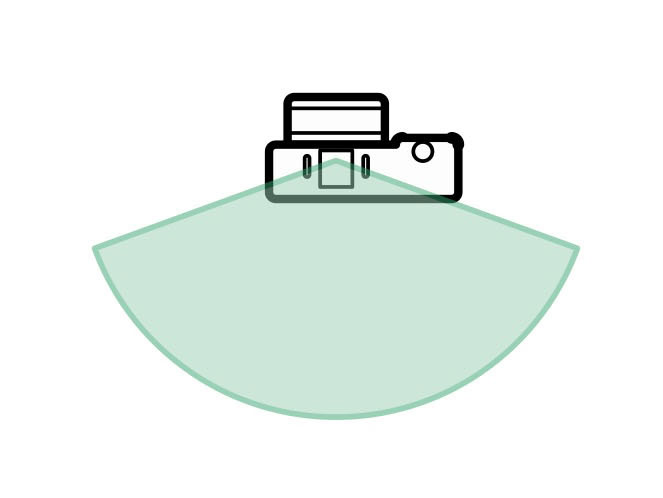
Rear: Captures audio from behind the camera. Useful for camera operator commentary or instructional content narration.
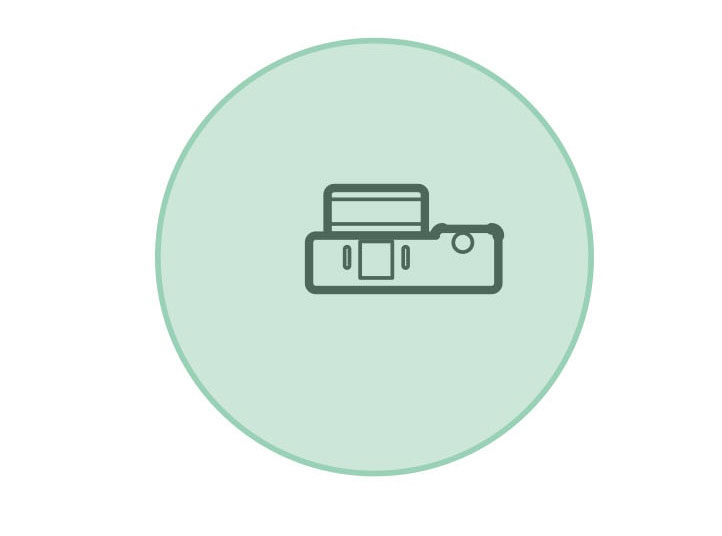
All Directions: Records 360° sound for an immersive listening experience. Suitable for capturing ambient or environmental sounds.
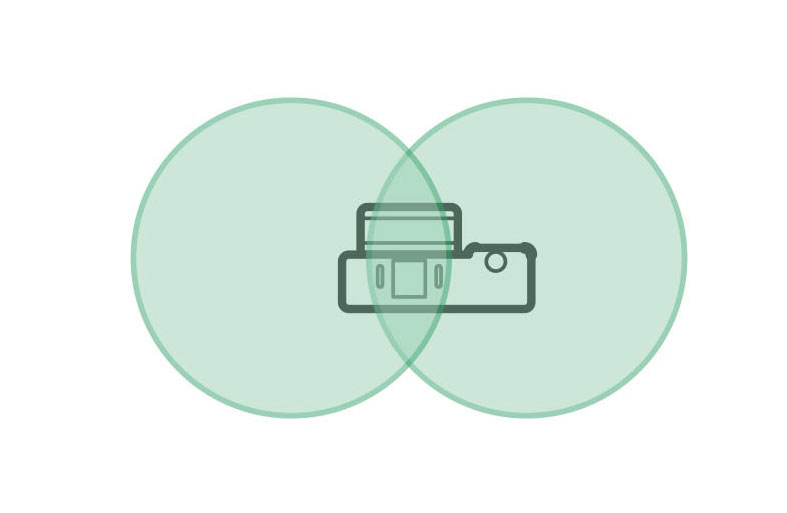
Stereo – Binaural: Mimics the way that human ears perceive sound, creating a more lifelike and spatial listening experience in your recording. Ideal for immersive playback through headphones.
Audio Direction Compatibility:
Audio direction modes are available when recording in H.264 or H.265 at standard (non-slow motion) frame rates up to 60 frames per second. Note that if you are filming in more advanced codecs available on the ZR, such as RAW, these audio direction mode features will not be available.
Enabling Audio Direction Modes:
- Select a compatible codec and frame rate.
- Open the Video Recording menu.
- Tap OZO Audio.
- Choose one of the five audio direction modes that best fits your scene.Each mode offers unique storytelling possibilities for documentary filmmakers, journalists, event videographers, and any filmmaker who wants to experience greater control over in‑camera audio.