Beginner
A Step-by-Step Guide to Using LUTs on the Nikon ZR Cinema Camera
The Nikon ZR Cinema Camera, which features a built-in, 4-inch DCI-P3 display, allows filmmakers to easily monitor their footage in-camera without adding external accessories.
The ZR features several monitoring functionalities, including the ability to display LUTs when filming in REDCODE RAW (R3D NE).
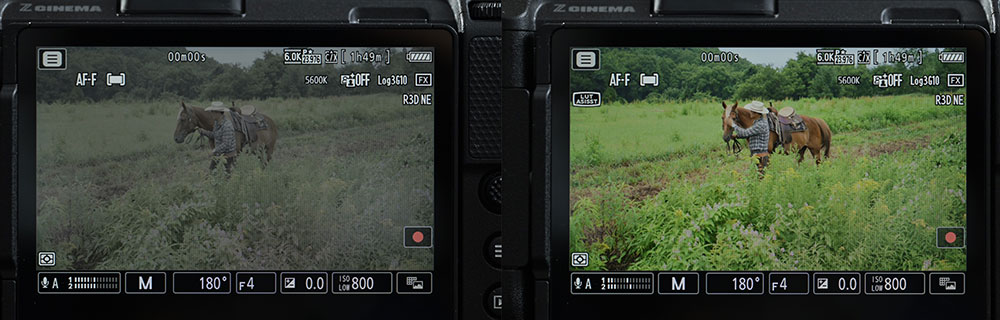
Left: The Log3G10 view on the Nikon ZR. Right: The LUT-activated view on the Nikon ZR.
To benefit from this feature, use the following steps:
Find or create LUTs that are designed for Log3G10Note that only the following types of LUT files are compatible with the ZR:
- 17pt, 33pt, or 65pt 3D LUTs
- Files with the extension “.CUBE”
- File names up to 90 characters long
- https://www.reddigitalcinema.com/download/red-creative-lut-kit
- This collection of LUTs was designed by professional Hollywood colorists
- They are compatible with the ZR and with RED Digital Cinema Cameras
- Utilize the following folder structure: “NIKON” > “LUTS” > (Insert your LUTs)
- With ZR firmware 1.10, you can see up to 50 LUT files on the memory card
- Navigate to the “Custom Settings Menu” (Press Menu Button > Pencil Icon)
- Select the Submenu “G: Video” > Scroll down to “G15: 3D LUT”
- From the “3D LUT” tab in G15, select “Import CUBE File”
- Highlight the LUT you want to import, then press into the multi-selector
- Find the desired rank to load it into, then select your preference
- Note that you will only be able to load up to 10 LUTs at a time
- With ZR firmware 1.10, you can view from up to 50 files per memory card
- The default monitoring LUT is “REC 709”
- After importing, you may select any of your custom LUTs
- Go to G15 to activate your preferred LUTs
- Open the live display view
- Tap the bottom right icon on your touchscreen
- Look for the ASSIST Icon (second row, center)
- Tap to toggle the LUT display on
- LUTs are deactivated when filming and playing footage back in:
- For all other R3D NE recording settings, LUTs will be viewable both in the live view and within in-camera playback
- LUTs displayed on the ZR will not be baked into the footage
- You can re-apply the same LUTs in your software or apply a new LUT\
By following these steps, filmmakers can take full advantage of RED Color Science, the ZR’s built-in, professional display, and a cutting-edge pro cinema workflow powered by RED.